All posts by Kapanther

Pain FREE POINT CLOUDS- Cloud Compare

Big point clouds are here to stay in the Civil world. I feel like Autodesk hasn’t really given us all the tools we need to get the job done. So I want to introduce a great open source program Cloud Compare (download link). Please donate if you start using it heavily.

Cloud compare will really help with the heavy lifting and pre processing of point data before going into the Recap/Civil 3D cycle.

If your feeling lazy watch the video here.

Alternatively read on

Cloud Compare

  1. Drag drop your point data LAS/LAZ/XYZ/CSV straight into cloud compare
  2. Tick off all the things you don’t need. I only leave on Classification, Apply to All
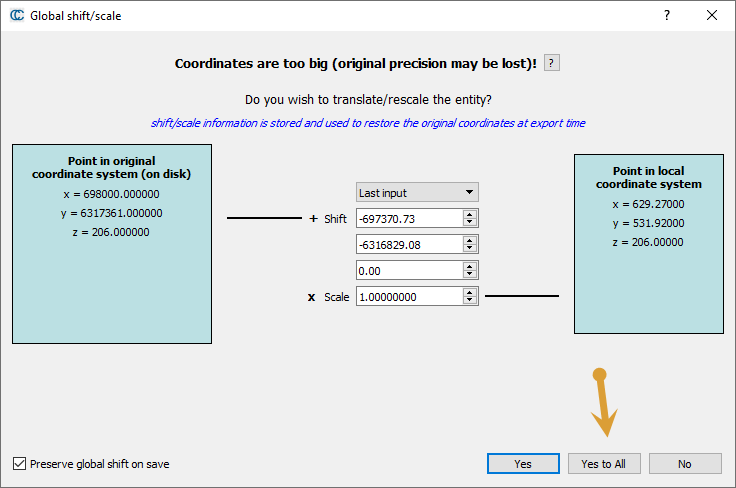
  3. Say Yes to All on the coordinate shift. It will move it back when you export it, so Don’t panic!
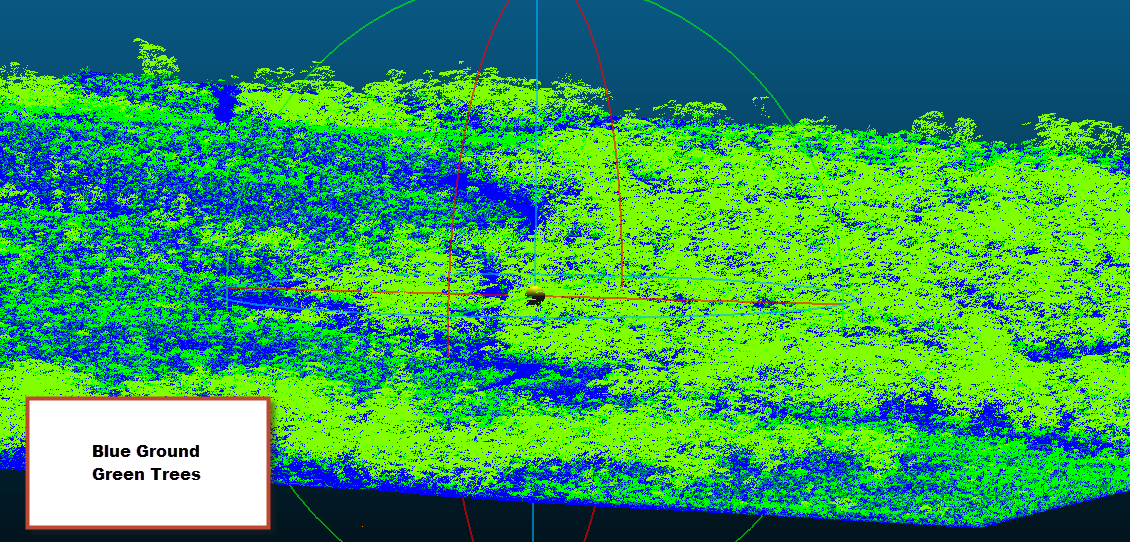
  4. Give it a spin and check out those trees (if you have any)
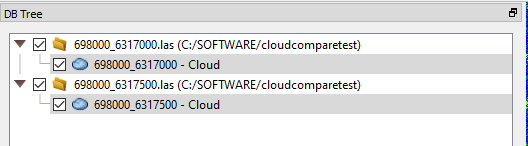
  5. Lets get rid of the trees, select the clouds in the DBTREE (use ctrl)
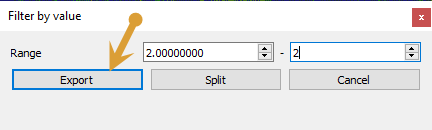
  6. Go to Edit – > Scalar Field – > Filter by value. We want to filter the ground points which are class 2 (See Classification here). So the range will be from 2 to 2
  7. You will now have a point cloud with no trees in your viewer. Next we want to reduce the amount of points, we call this thinning.
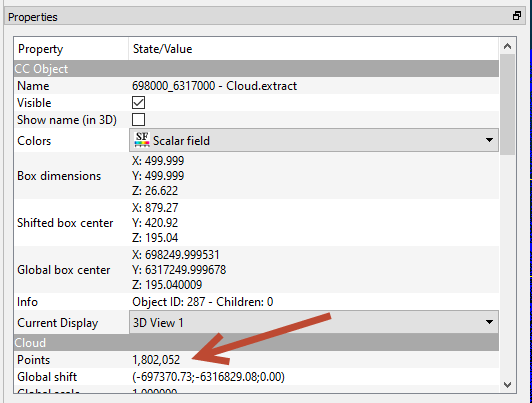
  8. Firstly check how many points you have in your clouds. You can do this be looking at the properties on the left when selecting the cloud
  9. Your final result you want is between 1 -2 millions points if your are working with the survey to create corridors and volume surfaces. (if your are using gradings you might want it to be less than 500k but we can do this in Civil 3d later.
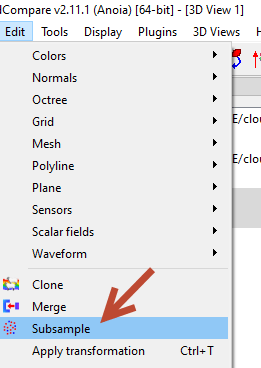
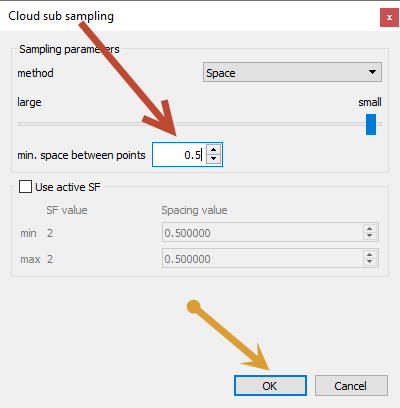
  10. Edit – Subsample
  11. The amount you reduce the point spacing to really depends on what your smallest ground feature you need to be able to extract from the point cloud. So if you know you have a drain that is only 500mm wide that you need to be able to see, don’t go bigger than 500mm. It’s a bit of a trial and error thing though, but the generally principle is we don’t need points every 5 cm.
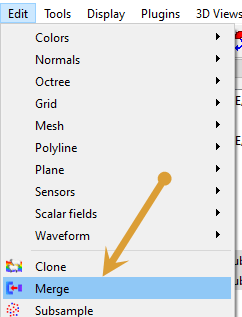
  12. The last thing you want to do is merge the file together and export
    Edit -> Merge
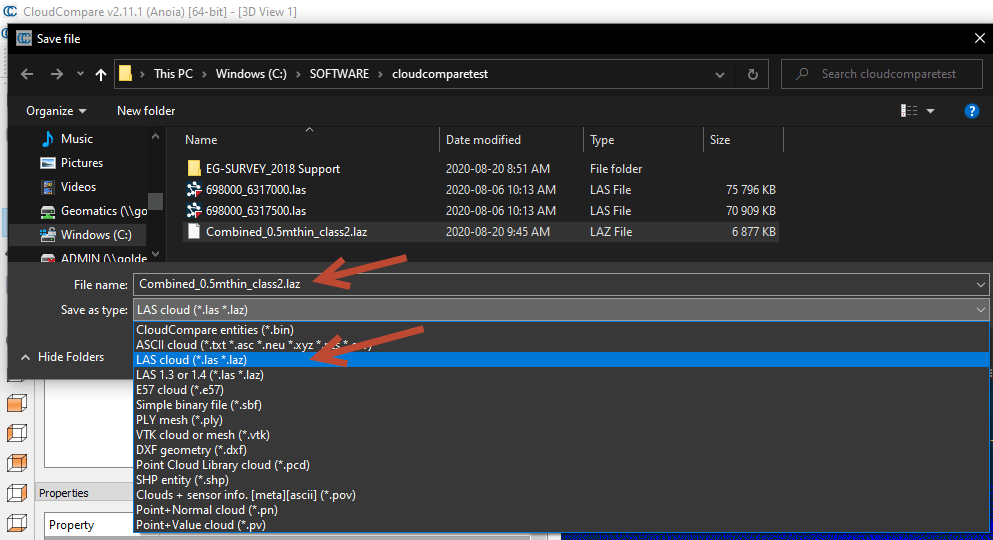
  13. File -> Save. Cloud Compare will export what ever you have displayed when you click this. Chose LAS/LAZ and change the extension to LAZ when you save. LAZ is way smaller than LAS. Its also a good idea to note the thinning and class you filtered it to.
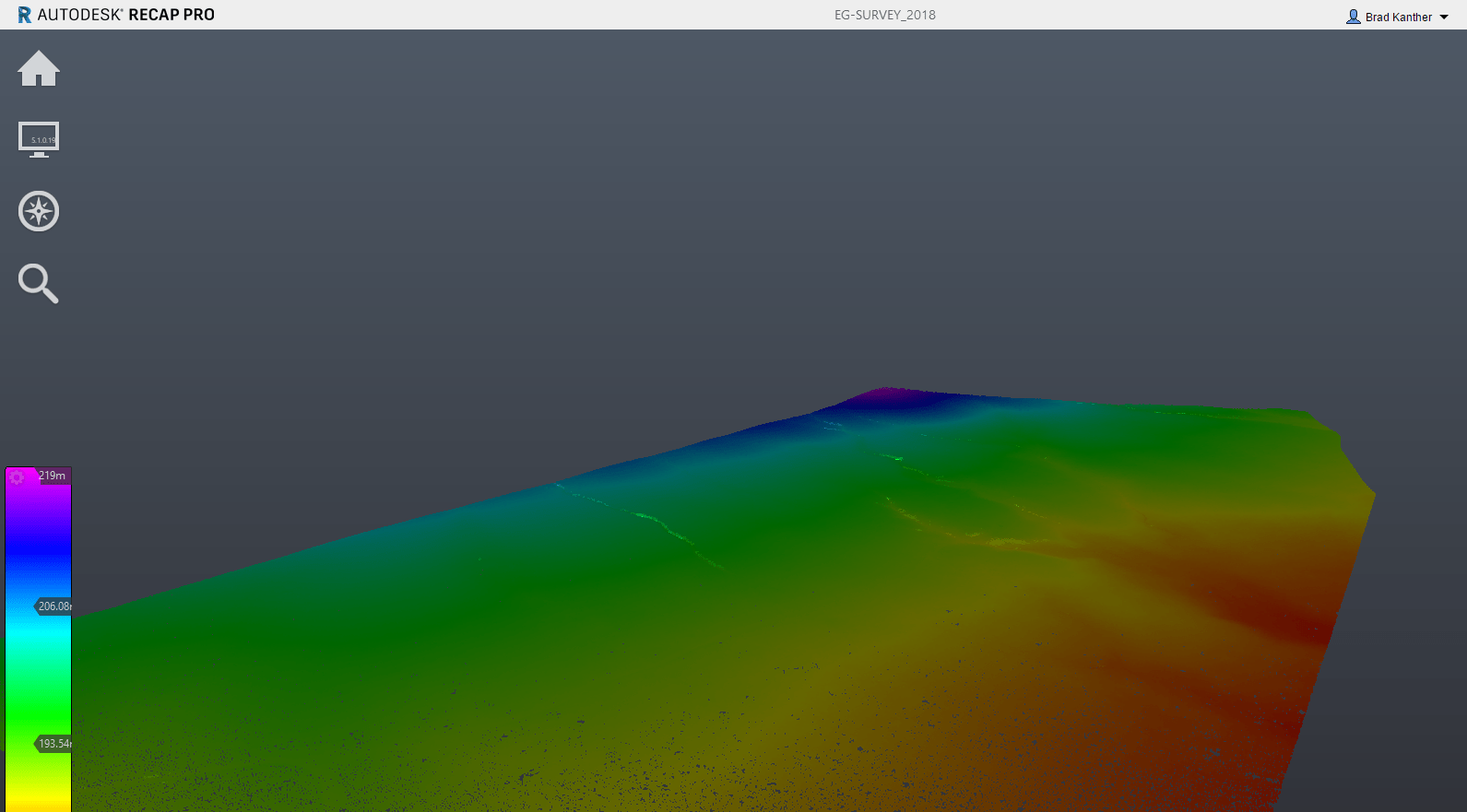
  14. Now its just a matter of creating a Recap Project and drag dropping this LAZ file in there. Once your done hit save and go over to Civil 3D.
  15. You can read in a RCP file from the Insert Ribbon – > Attach Recap Point Cloud or Type POINTCLOUDATTACH
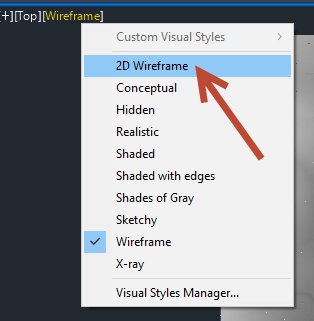
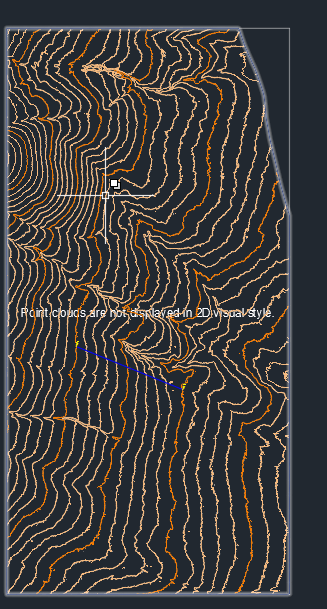
  16. After you attach, one of the first things you want to do is change your viewframe back to 2D wireframe. It will make the point cloud disappear and replace it with text but you can still use it and you wont get the performance lag you get in 3d wireframe
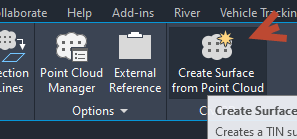
  17. Now we can select the point cloud and chose “Create Surface from Point Cloud” from the ribbon
  18. Give it a good name and include the capture date of the survey EG-SURVEY_YYYY-MM-DD
  19. Do your self a favour and put a link in the description the the source files you used to create the surface as well.
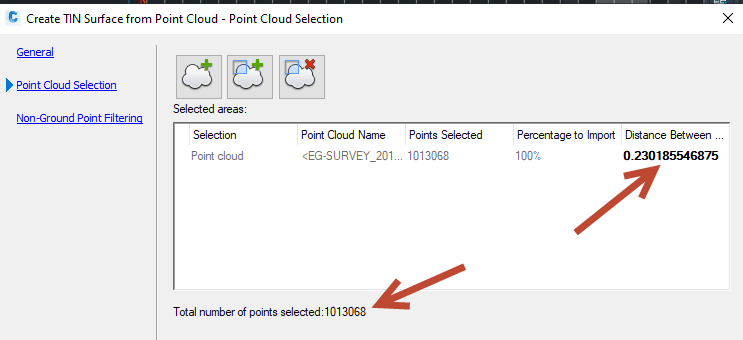
  20. Don’t click create surface yet. You can now filter the points down more or clip to box only first. But we have already filtered it down pretty good in CC. As mentioned before make sure you are less than 2M
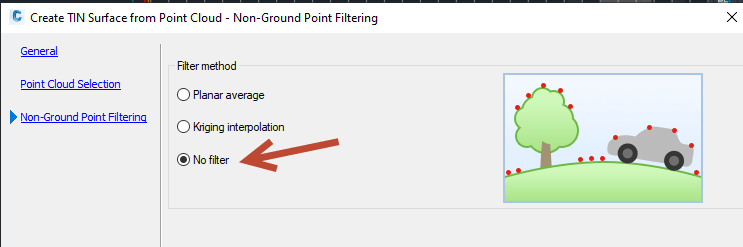
  21. Lastly Make sure you change the filtering to “No filter”. The filter is only used for Unclassified point clouds or photogrammetry points that have trees/buildings and cars in them.
  22. You should now have a surface in Civil 3D that is performance friendly
  23. Do yourself a favour and data shortcut it out. Then data shortcut it in to a separate design file before working.

Loading

Add Prefix and Suffix Codes Option for all default subassemblies

Quite often you want to use the same generic subassembly twice but you need the ability to distinguish between them with codes. It would be excellent if we could prefix or suffix all the codes used in the default subassemblies as shown below.

This enables a lot of flexibility for the styling of codesets and creating separated surfaces. It can resolve issues with codes overlapping each other.

Things like different options, left right, center etc. can all be established within the one corridor. Making it easier to link things together and create surfaces etc…

Loading

QGIS – Creating Longsection Profiles along lines at a specified interval

There are many analysis applications that require long section data or profiles to perform 2d sectional computations. Getting this data seems to be tricky for a lot of these users, so in this tutorial I want to share a method that’s free and easy using QGIS (2.18.4 when I wrote this).

Watch the video here if you’re feeling lazy.

Prerequisites

  • Vector Data for lines (SHP file, Excel Start/End Coords)
  • Raster Data (Geotiff(s)/Esri Grids etc.) contain desired elevation data. You can use multiple rasters if desired for geology etc,
  • QGIS Version >2.18
  • “Locate Points Along Line” – Plugin Installed (demonstrated in video)

Process

In the image below we have a series of lines that we wish to extract elevation data along.

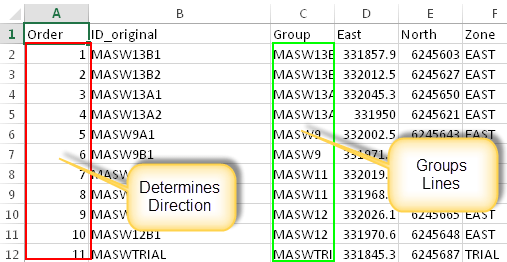
Typically we will start with data that looks like below, its really important that we have at least

  • Easting and Northings of Start/Ends or vertices.
  • A group field to determine which points belong to which lines
  • And an order field to determine which direction the lines is drawn in.

Save this file as a csv somewhere

Now click the big comma on the left to load a csv in QGIS

Ensure “comma” delimiter is checked, “First Record has field names” is checked. (typically it does) and that the X field and Y field are choosing the correct column for geometry, this typically happens automatically.

Finally check the output at the bottom to determine its write.

Very important to note here that you will need to then specify the coordinate system(CRS) this data is in. Right click the layer and select “Set Layer CRS”

Type in the filter to find the correct CRS

All the points have come in but we now need to connect the dots

Open the Toolbox (Ctrl+Alt+T)

Search for “Points To Path” in the toolbox and double click to load

Specify the layer that contains the points, ensure the group (line ID) and order(numbers to determine line direction) fields are selected correctly. Then chose a place to save the shp file.

We now have lines but we need a raster to get elevations from

Either “Drag-Drop” in the Geotiff/Esri Grid etc. you have or select the add raster button on the left

Double check the raster covers the extent of the lines! You may need to assign the CRS for this later as well.

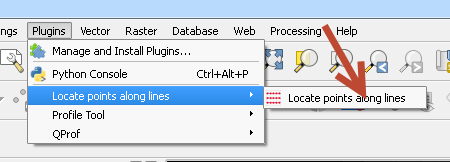
We now have everything but the points at the desired interval to get elevations from. We now need the plugin “Locate Points Along Lines”. Install from “Manage and Install Plugins…” if you don’t have it!

Choose a name/interval spacing and ensure “Keep Attributes” and “Add Endpoints” are ticked on. Then hit run.

Check that you have the desired results and the end points

Finally we need to add the elevations to the attribute table of these points. Right Click on the layer and select “Attribute Table” and you will see current there is no elevation data column.

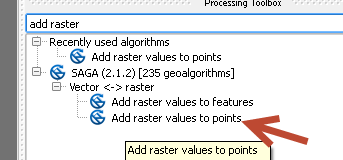
In the toolbox again search for “Add Raster Values to Points”

Ensure you select the 0.5m interval points layer you created. Chose the rasters to process and also chose a place to save the resulting layer.

Remove the old layer that doesn’t have elevations

Right click on the finished layer and select “Open attribute table”

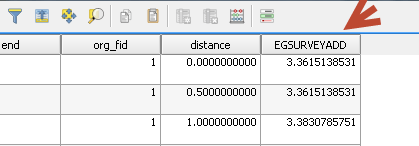
You should be able to see the elevation column at the end.

Select the top left corner of the attribute table and the press “ctrl+c” to copy all the data out

Then just past in excel and clean as required

Loading

Scale Based Rendering and other features for Civil 3d Styles.

Like This Idea Vote It UP here

It would be incredibly useful to allow certain aspects of Civil 3D styles to change dependent on the scale they are visible at. (other than just the size, which happens already of course!)

This could be done at style level or object level or even better both? one overrides the other.

Fox example

  • Contour Intervals could change depending on the scale
  • Alignment Intervals could change dependant on scale.
  • Style could also allow visibility of certain objects only at certain scales.
  • Components could display different information at different scales (labels could become more or less complex)
  • Dragged states could have different locations for different scales (similar to annotative scaling already for regular autocad objects)

I particularly like the way arcgis handles this with scale ranges that make sense, like room, county, building,continent etc..

Like This Idea Vote It UP here

Loading

REPLACEOBJECTWITH – Replace a C3D Object Geometry/Data with another C3D object’s Geometry/Data of the same type

I would like to see this command available for every civil 3d object. In both the toolspace and on right click menu’s/context sensitive ribbon. This is similar to the way styles can be replaced with another style in the settings tab. But instead, the C3D object would be replaced with the geometry/data of another Civil 3D objects. But more importantly, all the links would be maintained.

image003image005

Example – Corridor Modelling (replacing objects instead of retargeting)

This would be particularly useful with corridor modelling. As it would mean targets would not need to be respecified, just the geometry of the target object is replaced and then the corridor can be rebuilt.

So for example below, I have a corridor that targets a feature line, this feature line is used as a conditional horizontal target as well as a target for its horizontal position and vertical elevation.

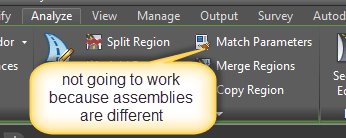
There are maybe 15 regions that use this one feature line and each region has 4 targets each. Some of the regions use a different subassembly. So using the “Match Parameters” command is not going to work.

Using the “replace object with” would solve this in two clicks. Instead of many clicks in the target parameters box.

Other Uses

  • Replacing Design Profile Geometry
  • Replacing Alignment Geometry
  • Replace Surface geometry with another surface. (rather than promoting and pasting in)
  • Replacing Point Data or Point Groups with another point group.
  • The list really goes on..

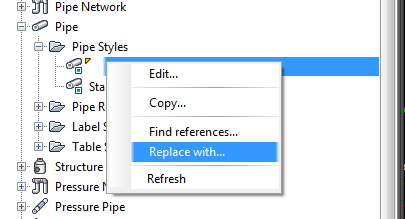
The Current Style Replace with.

Not available on all styles. But useful none the less.


Loading

Data Synchronisation Series – using Free File Sync – Local C Drive Sync

We all run into problems with data eventually in engineering. Usually one of the first hurdles on large projects anyway is “displaced data” or data that is stored in multiple places and used by multiple people. Although it is possible to have fancy software solutions like Projectwise, Autodesk Vault and 12d Synergy automatically controlling your data and syncing it around etc., sometimes we either don’t have the money or the time to setup such elaborate systems. Free File Sync to the rescue.
In this blog, I’ll show you how to setup a sync between your c: drive (local) and your network location. Although the same principles apply for any other syncing. This tends to be the most useful for people working on site, or through VPN’s or at home etc.

Prerequisites

  1. Go install free file sync from here. If you use it regularly, I encourage you or your company to donate on the site.
  2. Download these scripts to help you change your environment quickly. Download Local Drive Scripts

Setting Up

  1. Firstly determine your two locations you want to sync to
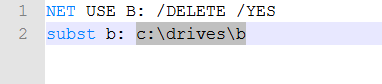
    1. Local – c:\drives\b (So that the drive mapping stays the same we will create a fake B: drive to ensure referencing is maintained, you can create whatever drive you want)
    2. Server – \\servername\folder\folder etc.
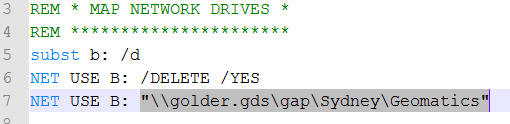
  2. Open the two scripts contained in the zip and edit the paths to match your syncing locations
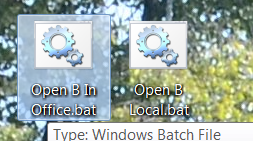
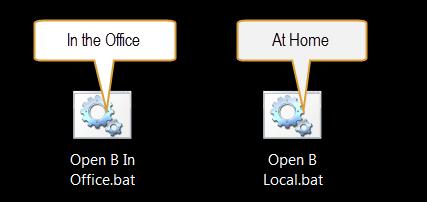
    1. In “Open B Local.bat” add the path to where you will store your “fake” b: drive
    2. In “Open B In Office.bat” add your server path
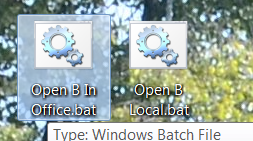
    3. Copy both of these scripts to your desktop for easy access
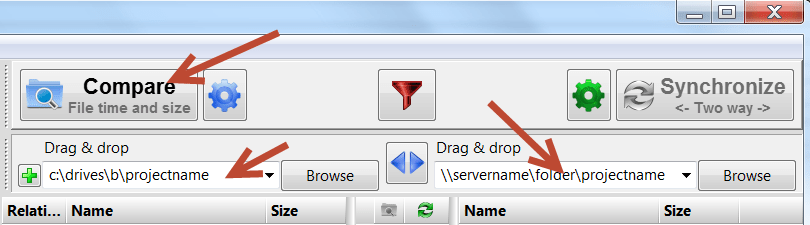
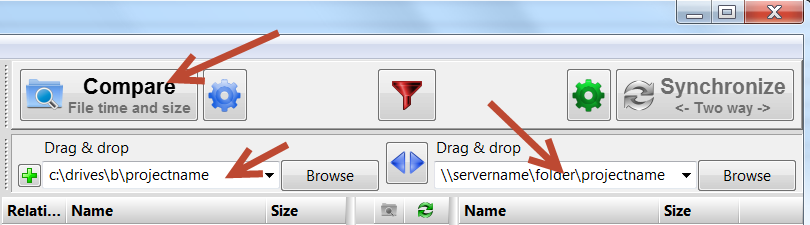
    4. If you only want to sync a specific project determine those paths. Now open free file sync and add the local path to the project in the left folder field and the server path to the right folder field. Then press compare!
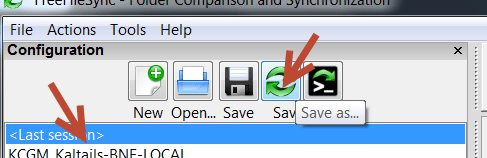
    5.  So that you don’t have to keep entering the paths everytime, you can save the sync to the project folder. It’s usually useful to give it a name like
      <Project Name>_<Location 1>-<Location 2> and add it to the project folder base directory. This way all your sync pair history comes up on the left as well.
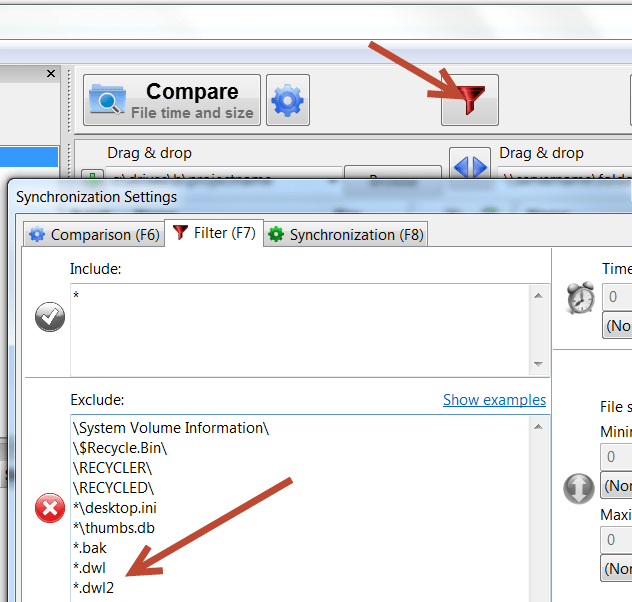
    6. You should now be able to see all the files that will be copied from the server to your local drive. If you have a lot of data you may want to add some filters to reduce the amount of data that needs to be synced everytime. Things like *.bak files *.dwl and *.dwl2 files may not be needed. You can add them to the filters button up the top.
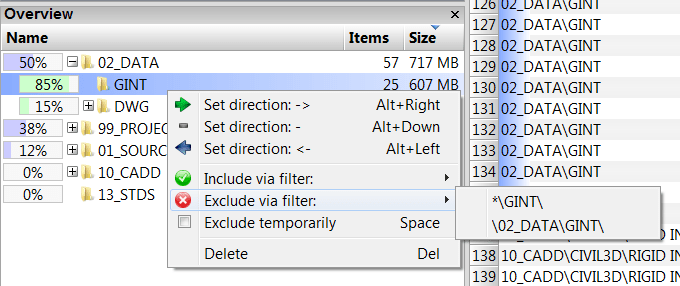
    7. You may also want to exclude certain folders from syncing to reduce space. Down the bottom left you can see the percentage of total space that each folder consumes. To exclude it via the filter just right click on it select “exclude via filter”. Excluding using a filter saves you from having to exclude it every time you sync. You can use wild cards in the filters as well like *\SOURCE* will exclude any folders staring with source etc.
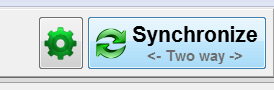
    8. Once you are happy you have all the filters and correct paths. Press “Start Synchronisation”. This will copy all the files necessary down to your C drive so you can start working

Changing Your Environment.

If your working from home Run the “Open B Local.bat”

If your back in the office “Open B In Office.bat”

Keep on Syncing

1. Once your synced for the first time. You can now run periodic syncing at your leisure. After doing a compare FFS lets you know which files are going where

2. You can turn off the different types of sync by pressing the buttons down the bottom.

3. Its pretty straight forward but:
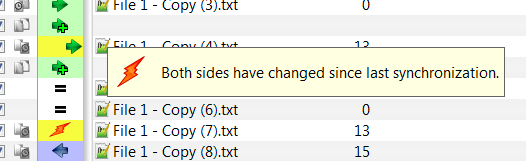
Purple is files going left
Green is files going right
+ sign means it’s a file
no + sign means its updating an existing file
= means they are the same
BUT MOST importantly the “lightning bolt” means its changed in both locations since the last sync

4. You can change which way things go by clicking the middle bar. This is great for resolving conflicts. Click and drag to do multiple items at once.

5. Press Sync to run. A lot easier than doing it yourself manually! Plus great for working over a vpn as only the files that have changed get sent through. Rather than all the files you access.

In the next blog series on Data Synchronization I’ll talk about how to script this or even use “Real time Sync” that comes with free file sync.

Loading